Table of Contents
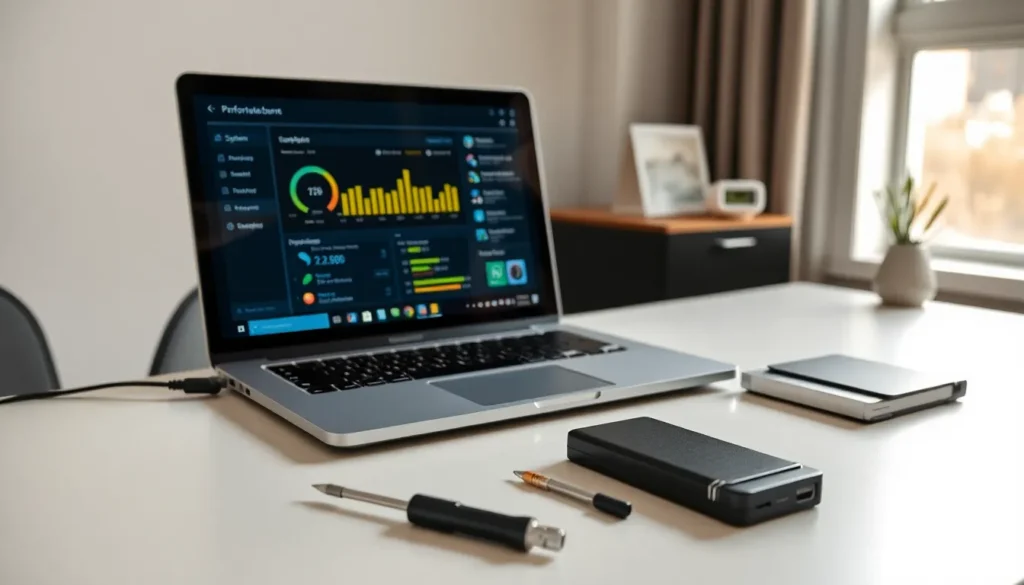
ToggleLaptop tools can make the difference between a sluggish machine and one that runs like new. Whether someone uses their laptop for work, gaming, or everyday browsing, having the right utilities saves time and prevents headaches. From built-in system features to third-party software, these laptop tools help users maintain performance, diagnose problems, and protect their data. This guide covers the essential laptop tools that every user should have in their toolkit, no technical expertise required.
Key Takeaways
- Built-in laptop tools like Task Manager, Disk Cleanup, and System File Checker handle essential maintenance without requiring additional downloads.
- Third-party laptop tools such as CCleaner, CPU-Z, and HWMonitor offer deeper functionality for cleaning junk files, viewing hardware specs, and monitoring system temperatures.
- Hardware diagnostic tools like CrystalDiskInfo and Windows Memory Diagnostic help detect failing drives and RAM errors before they cause data loss.
- Security laptop tools including antivirus software, password managers, and encryption utilities protect your data from malware and theft.
- Follow the 3-2-1 backup rule—three copies, two media types, one offsite—using backup solutions like File History, Time Machine, or cloud services.
- Physical repair kits with precision screwdrivers, compressed air, and thermal paste help maintain laptop hardware and prevent overheating issues.
Built-In System Utilities for Performance and Maintenance
Most laptops come with powerful laptop tools already installed. These built-in utilities handle common maintenance tasks without requiring additional downloads.
Task Manager (Windows) and Activity Monitor (Mac)
Task Manager on Windows shows which programs use CPU, memory, and disk resources. Users can identify slow applications and end unresponsive processes with a few clicks. Mac users get similar functionality through Activity Monitor. Both laptop tools help diagnose why a system feels sluggish.
Disk Cleanup and Storage Management
Windows includes Disk Cleanup, which removes temporary files, system cache, and old Windows updates. This laptop tool can free up gigabytes of space. Mac users can access Storage Management through About This Mac to review and delete large files, empty trash automatically, and optimize storage.
Defragmentation and Optimization
Windows users with traditional hard drives should run the built-in Defragment and Optimize Drives tool periodically. This laptop tool reorganizes fragmented data for faster read times. Note that SSDs don’t need defragmentation, Windows handles SSD optimization automatically through TRIM commands.
System File Checker
The System File Checker (SFC) scans for corrupted Windows files and repairs them. Users run this laptop tool through Command Prompt with a simple command. It fixes issues that cause crashes, errors, and performance problems without reinstalling the operating system.
Must-Have Third-Party Software Tools
Built-in utilities cover the basics, but third-party laptop tools offer deeper functionality and better user interfaces.
CCleaner
CCleaner remains one of the most popular laptop tools for cleaning junk files. It removes browser cache, cookies, and application leftovers that accumulate over time. The registry cleaner fixes orphaned entries, though users should create a backup before running it.
CPU-Z and GPU-Z
These lightweight laptop tools display detailed hardware information. CPU-Z shows processor specifications, motherboard details, and RAM timing. GPU-Z does the same for graphics cards. Both prove invaluable when upgrading components or troubleshooting compatibility issues.
TreeSize or WinDirStat
These laptop tools visualize storage usage through interactive charts. Users quickly spot which folders consume the most space. Finding that forgotten 50GB folder of old downloads takes seconds instead of hours of manual searching.
HWMonitor
HWMonitor tracks temperatures, voltages, and fan speeds in real time. This laptop tool helps users detect overheating problems before they cause permanent damage. Gamers and power users particularly benefit from monitoring thermal performance during intensive tasks.
Hardware Diagnostic and Repair Tools
Software laptop tools can only do so much. Physical problems require hardware diagnostic utilities and sometimes actual repair equipment.
Memory Diagnostic Tools
Windows Memory Diagnostic tests RAM for errors that cause random crashes and blue screens. Users schedule this laptop tool to run at the next restart. MemTest86 offers more thorough testing for those who suspect memory issues.
CrystalDiskInfo
This laptop tool reads SMART data from hard drives and SSDs. It displays health status, temperature, and potential warning signs. Users get early warnings about failing drives, usually with enough time to back up data before disaster strikes.
Physical Repair Kits
Some laptop tools exist outside of software. A precision screwdriver set with pentalobe and Torx bits opens most laptop cases. Compressed air cans remove dust from vents and fans. Thermal paste kits help users repaste overheating CPUs. Spudgers and prying tools separate components safely without scratching surfaces.
Bootable USB Drives
Creating a bootable USB with diagnostic laptop tools proves essential for serious troubleshooting. Hiren’s BootCD PE and Ultimate Boot CD contain dozens of utilities that run independently of the main operating system. These laptop tools diagnose problems even when Windows won’t start.
Security and Backup Tools to Protect Your Data
Performance means nothing if malware destroys files or a drive failure erases years of photos. Security and backup laptop tools deserve priority in any toolkit.
Antivirus Software
Windows Defender provides solid baseline protection on Windows laptops. Third-party options like Bitdefender and Malwarebytes offer additional features. Mac users benefit from Malwarebytes for Mac, even though the platform’s reputation for security. Running occasional scans with these laptop tools catches threats that slip through.
Password Managers
Bitwarden and 1Password store credentials securely across devices. These laptop tools generate strong passwords and autofill login forms. Users only remember one master password instead of hundreds. The security improvement alone makes password managers essential laptop tools.
Backup Solutions
Windows File History and Mac Time Machine create automatic backups to external drives. Cloud services like Backblaze provide offsite protection for about $7 monthly. The 3-2-1 backup rule suggests keeping three copies on two different media types with one stored offsite. These laptop tools prevent catastrophic data loss.
Encryption Tools
BitLocker (Windows Pro) and FileVault (Mac) encrypt entire drives. If a laptop gets stolen, thieves can’t access data without the password. VeraCrypt offers cross-platform encryption for users on Windows Home or those wanting additional security layers. These laptop tools protect sensitive information from physical theft.